

App Store Listing Guidelines
Your App Store product page is your app’s first impression, and often the only chance you get to turn a curious visitor into a user. Every element on the page works together to answer one question: “Is this worth my time?” The title and subtitle grab attention, the description builds trust, screenshots show value in seconds, and preview videos remove uncertainty. App Store traffic is high-intent and free, so optimizing this page isn’t just about aesthetics, it’s about conversion. A clear, focused, and well-designed product page can significantly increase downloads.
App Name
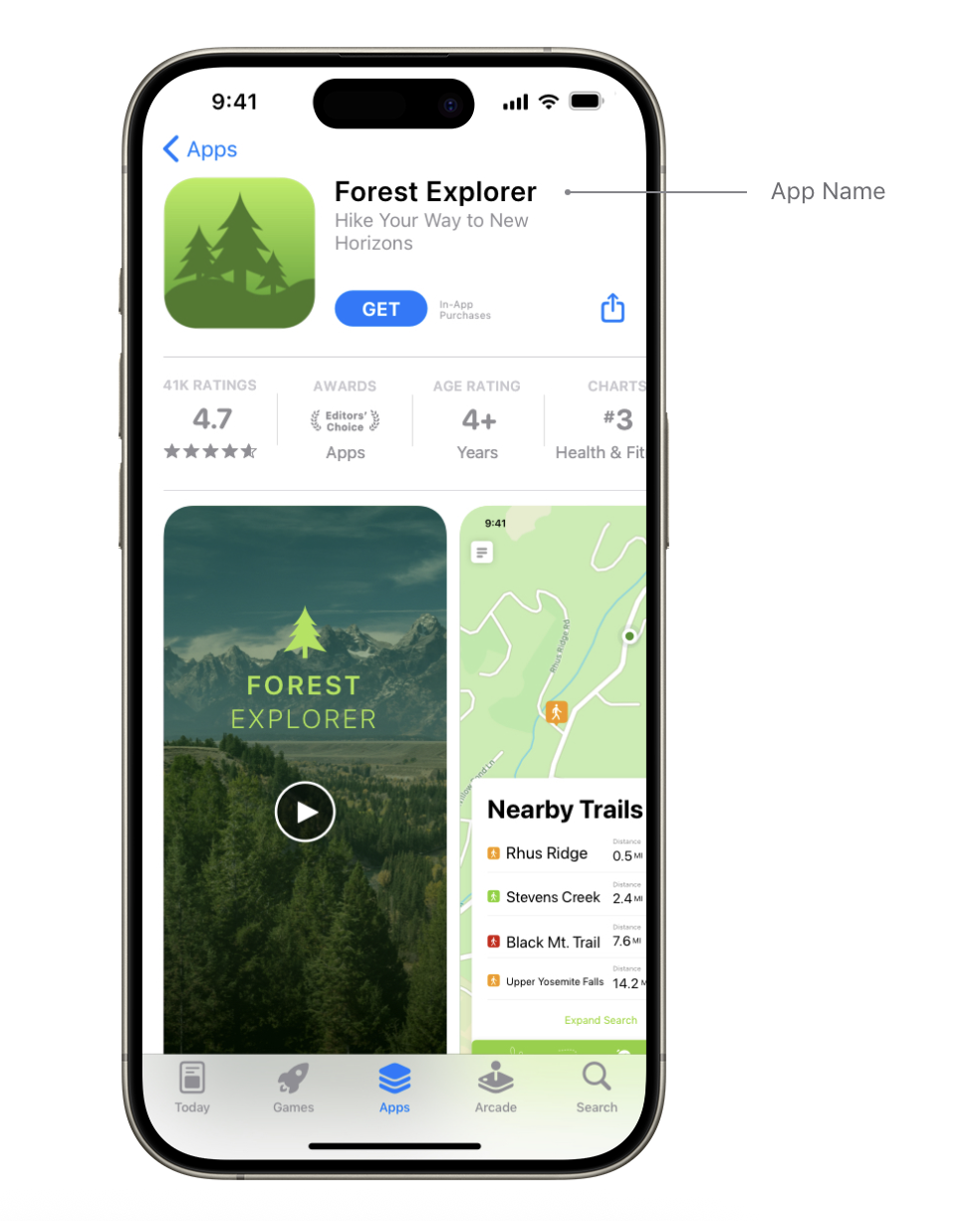
Your app’s name has a big impact on how easily people can find your app. Start by picking a name that is simple and easy to remember: users should be able to spell it without guessing, and it should clearly hint at what your app does. For ASO (App Store Optimization), include your most valuable keywords directly in the app title where it makes sense, as this helps improve visibility in search results while keeping the name natural and readable. Make sure the name is distinctive by avoiding overly generic terms or names that look or sound too similar to existing apps, which can cause confusion and reduce discoverability. Finally, keep the character limit in mind: app names can be up to 30 characters long, so focus on clarity, keyword value, and impact without unnecessary extras.
Icon
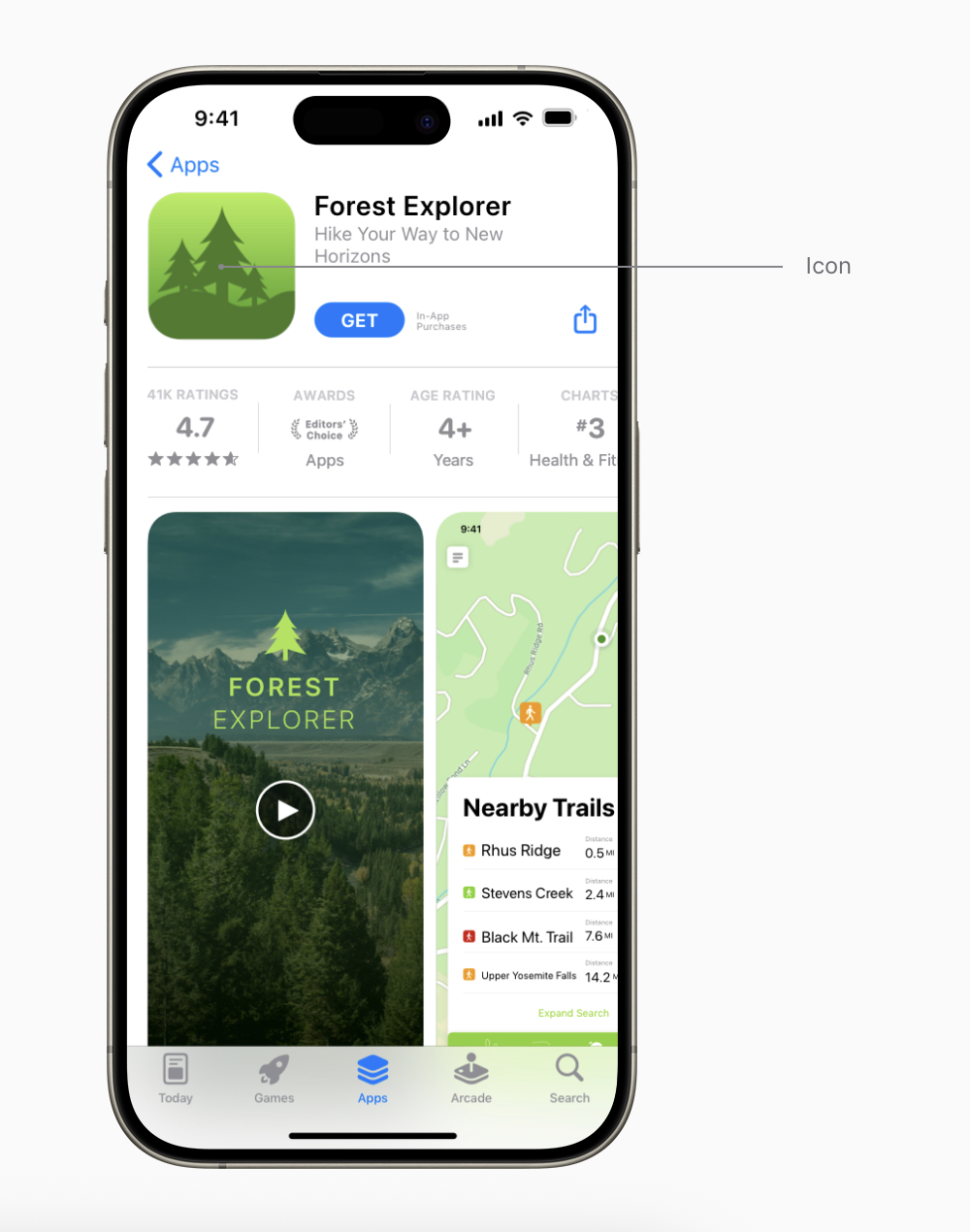
Your app icon is often the first thing users notice, so it should immediately convey both the quality and purpose of your app. Aim to make a strong first impression by choosing a design that feels polished and intentional. Consider working with a graphic designer to create an icon that is clean, simple, and easy to recognize at a glance. Testing multiple icon variations can help you understand which design resonates most with your target audience. To ensure your icon remains clear at all sizes, avoid unnecessary details or complex visuals. A focused, minimal design will stay legible and memorable across different devices and contexts.
Subtitle
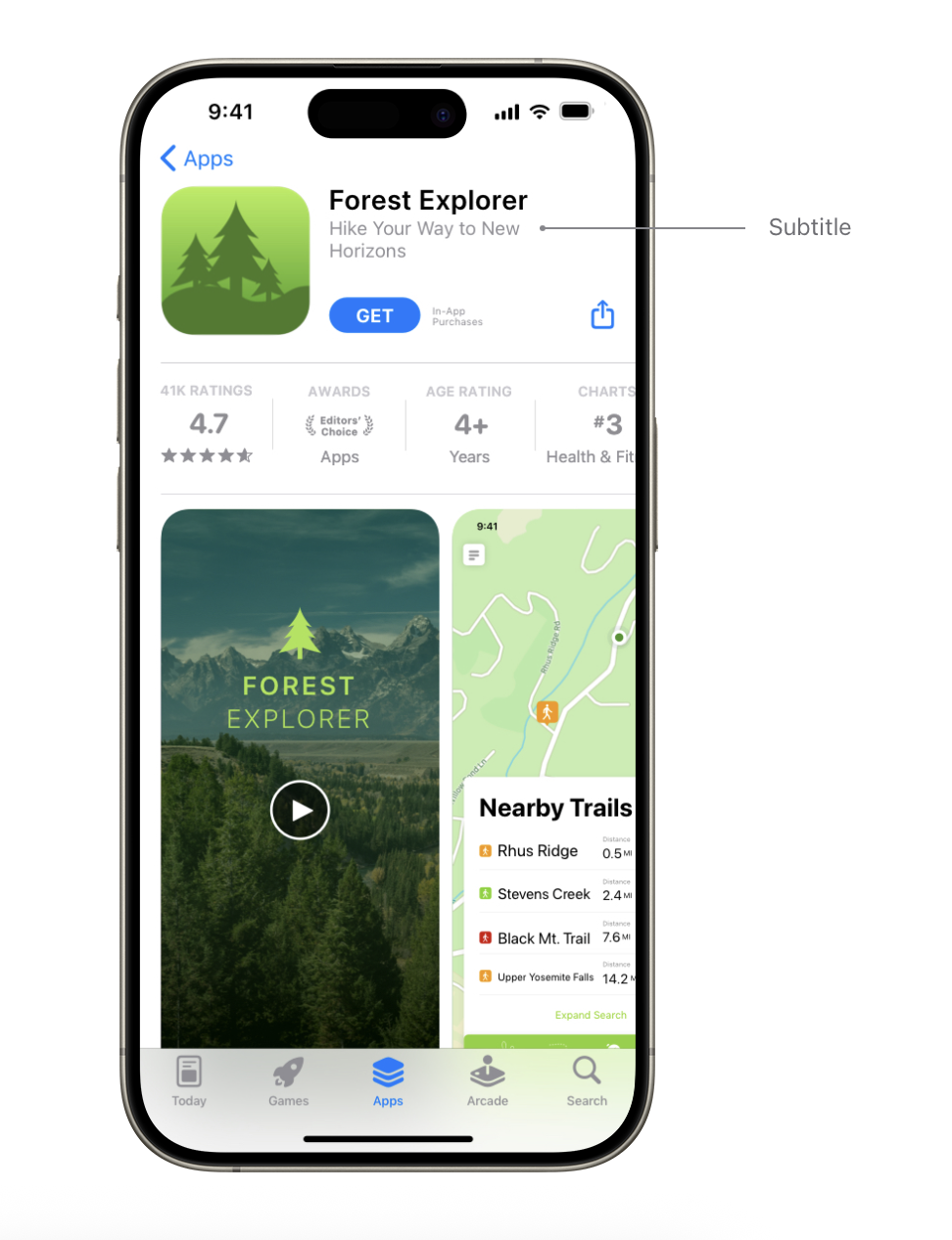
Your app’s subtitle is designed to describe what your app does in a short, focused phrase. Use it to communicate your app’s value more clearly than the name alone can. Avoid vague or generic claims like “world’s best app.” Instead, emphasize key features or common use cases that matter to your target audience. The subtitle is also a great place to include relevant keywords that support App Store Optimization (ASO) and help improve your app’s search visibility. You can update your subtitle each time you submit a new version of your app, which makes it a useful place to test and refine messaging. Keep in mind that subtitles can be up to 30 characters long and appear directly below your app’s name throughout the App Store.
App preview (video)
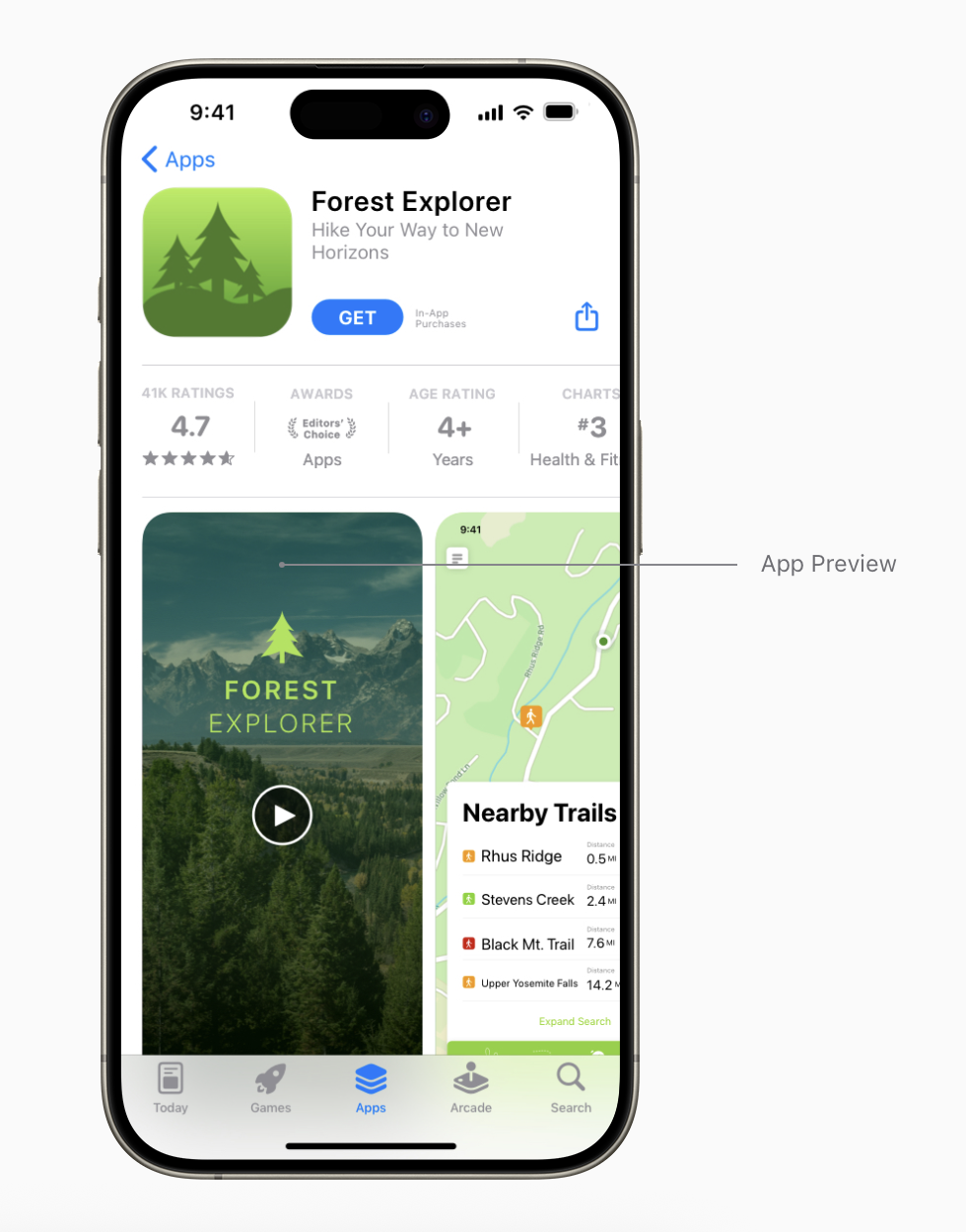
An app preview is a short video that showcases your app’s features, functionality, and user interface directly on the App Store. It gives users a quick, visual understanding of what it’s like to use your app. App previews can be up to 30 seconds long and should be created using footage captured on the device to accurately reflect the in-app experience. You can add up to three app previews to your App Store product page, and localize them for every language your app supports.
Because app previews autoplay with the sound muted, it’s important to make the first few seconds visually engaging. Strong visuals help capture attention immediately. When videos don’t autoplay, poster frames are shown instead, so choose clear, compelling frames that represent your app well. How to make
Screenshots
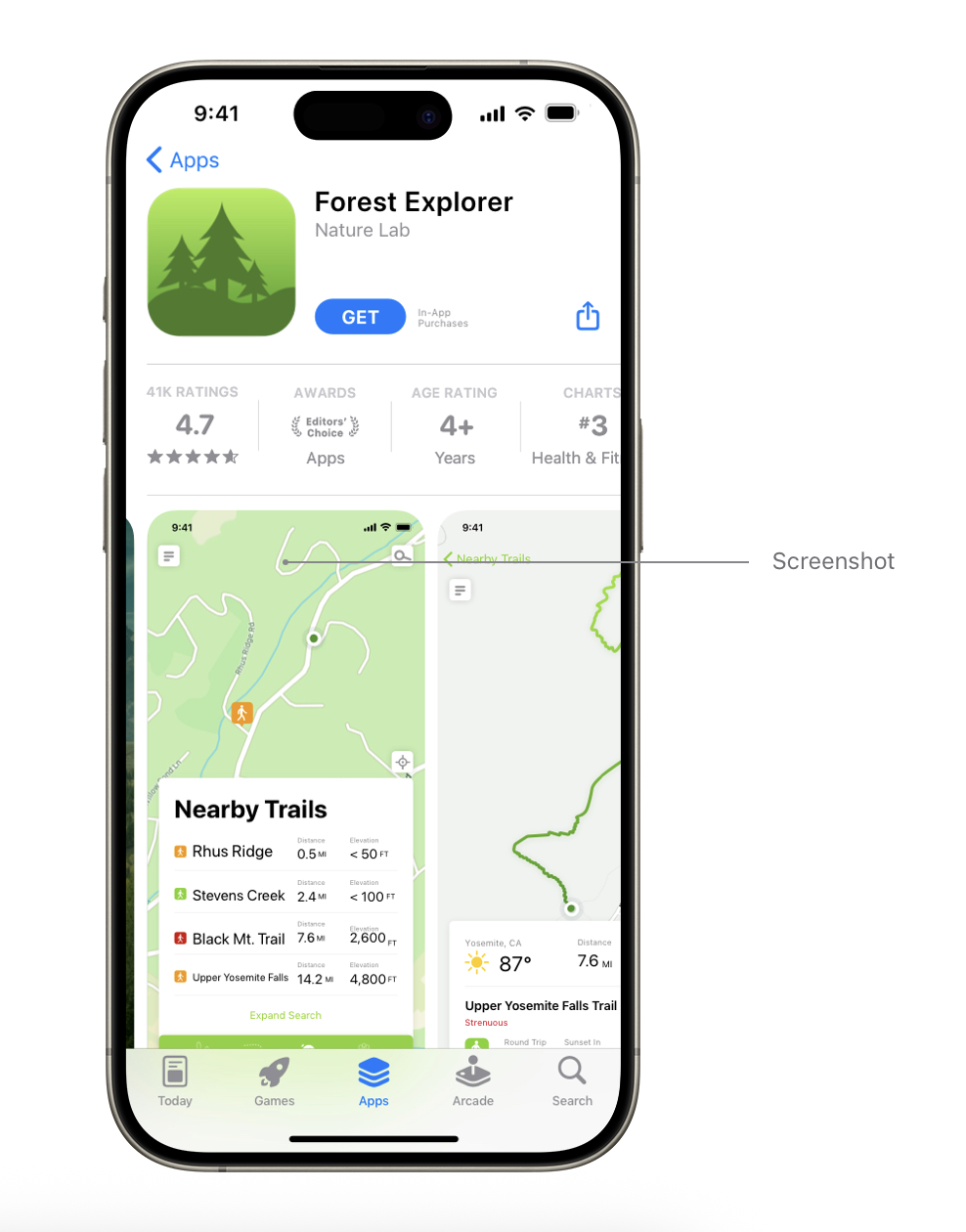
Use images captured directly from your app’s UI to clearly communicate the user experience. These screenshots help users quickly understand what your app looks like and how it works. You can display up to 10 screenshots on your App Store product page. Depending on their orientation, the first one to three screenshots may appear in search results when no app preview is available, so make sure these initial images highlight the core value of your app. For the remaining screenshots, focus each one on a key feature or primary benefit to tell a complete story about your app. If your app supports Dark Mode, consider including at least one screenshot that demonstrates how the experience looks in that setting. Specifications
Description
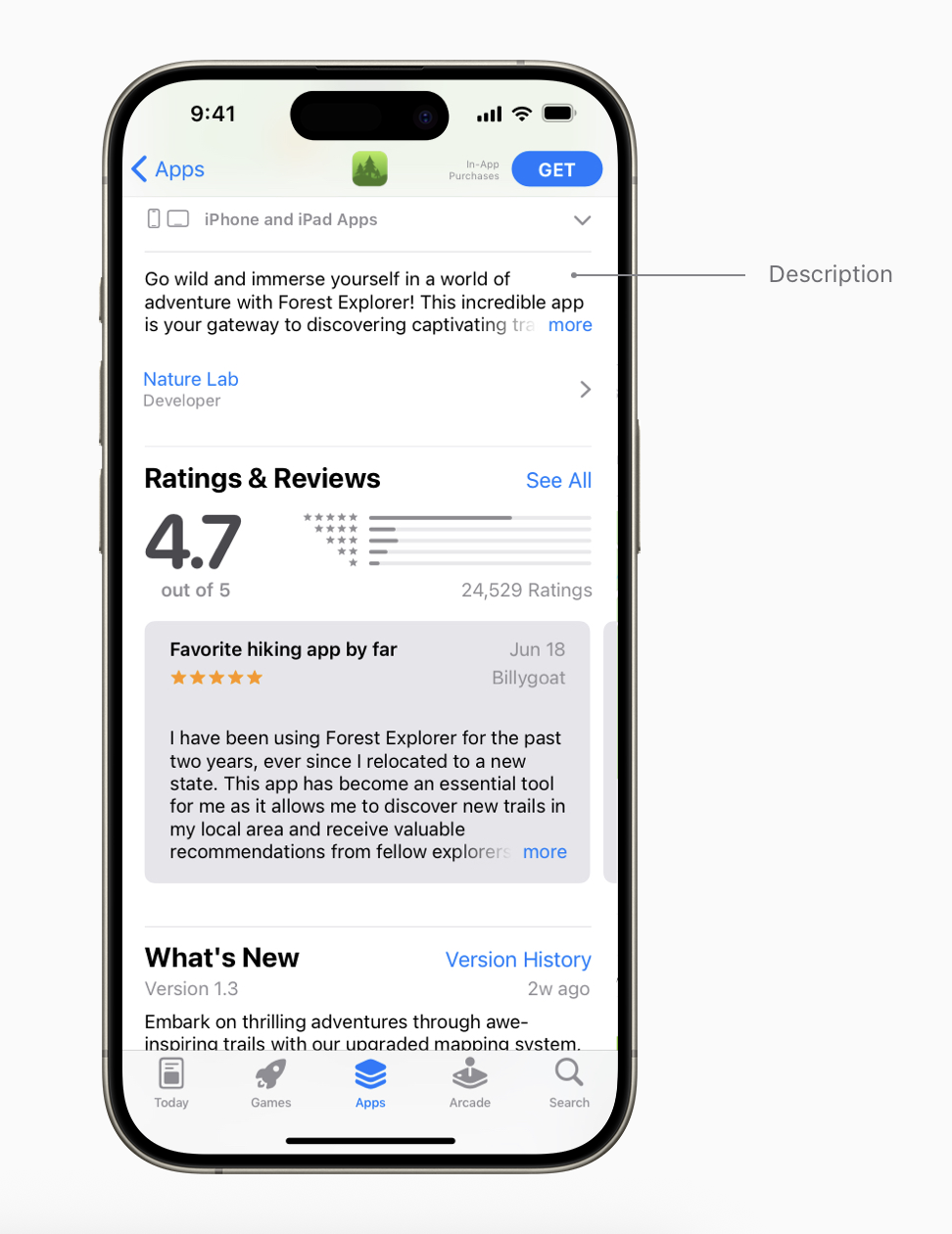
Create an engaging app description that clearly explains your app’s features and functionality. A strong description typically starts with a concise, informative paragraph, followed by a short list of your main features. Use this space to explain what makes your app unique and why users will find it valuable. Pay special attention to the first sentence, this is what users see before tapping to read more. Because every word matters, focus on your most compelling and distinctive features right away. Avoid keyword stuffing in an attempt to improve search ranking, and do not include specific pricing information. Pricing is already displayed on the product page, and prices can vary by region. You can update your app’s description each time you submit a new version. For time-sensitive announcements or frequent updates, consider using the promotional text field instead.
Keywords
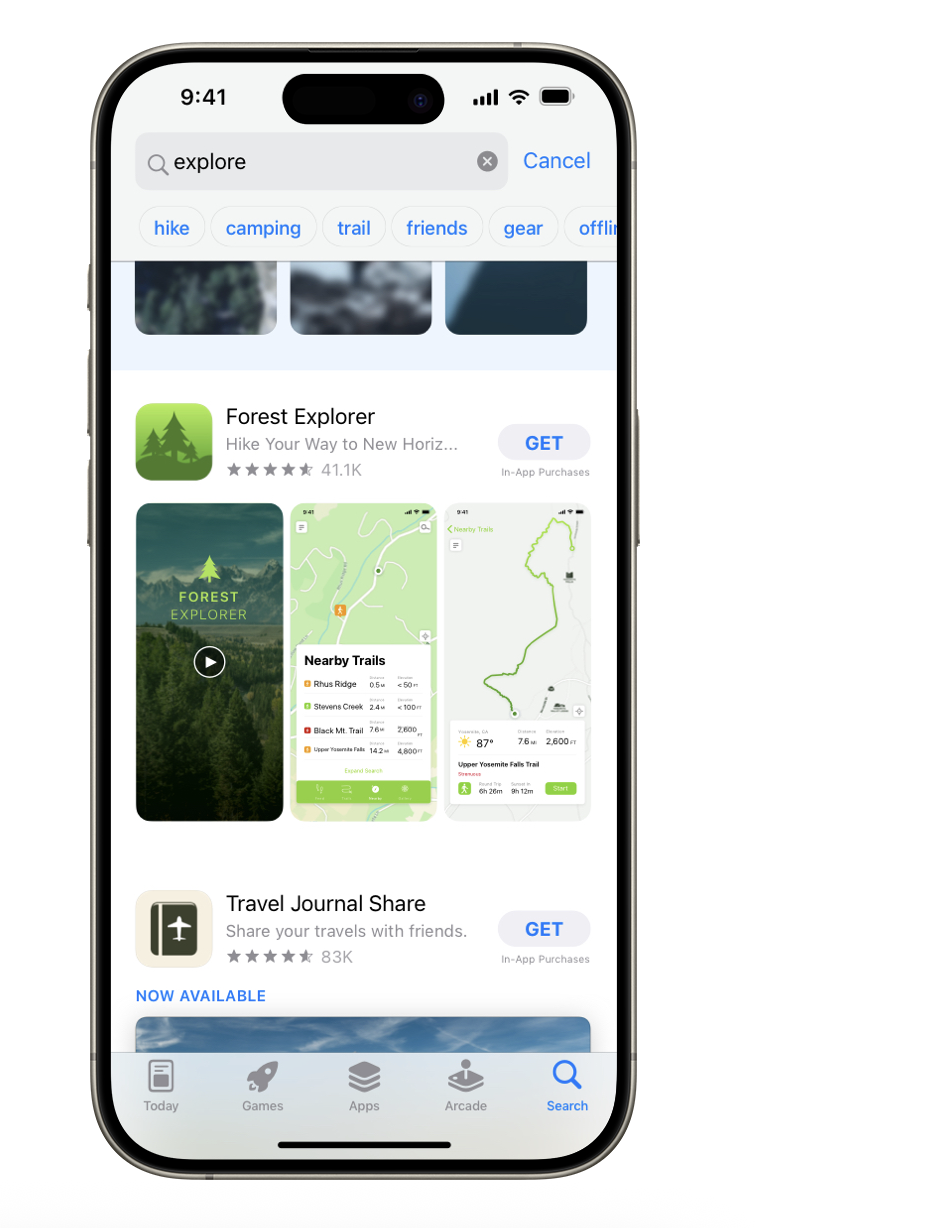
Keywords play a major role in where your app appears in search results, so it’s important to choose them strategically. Start by thinking about the words and phrases your target audience is most likely to use when searching for an app like yours. Be specific when describing your app’s features and functionality. Clear, relevant keywords help the search algorithm match your app with the right queries. Also consider the balance between competition and visibility: popular functional terms can generate high traffic, but they are often very competitive. Less common terms may attract fewer searches, but they can be easier to rank for.
You have up to 100 characters total for keywords. Terms should be separated by commas with no spaces between them. You can include spaces within multi-word phrases (for example: Property,House,Real Estate). Avoid:
Plural forms of words you’ve already included
Category names or the word “app”
Duplicate words
Special characters such as # or @
Do not include:
Trademarks, celebrity names, or other protected words
Keywords that are unrelated to your app
Names of competing apps
Irrelevant, inappropriate, or offensive terms
In-app purchases
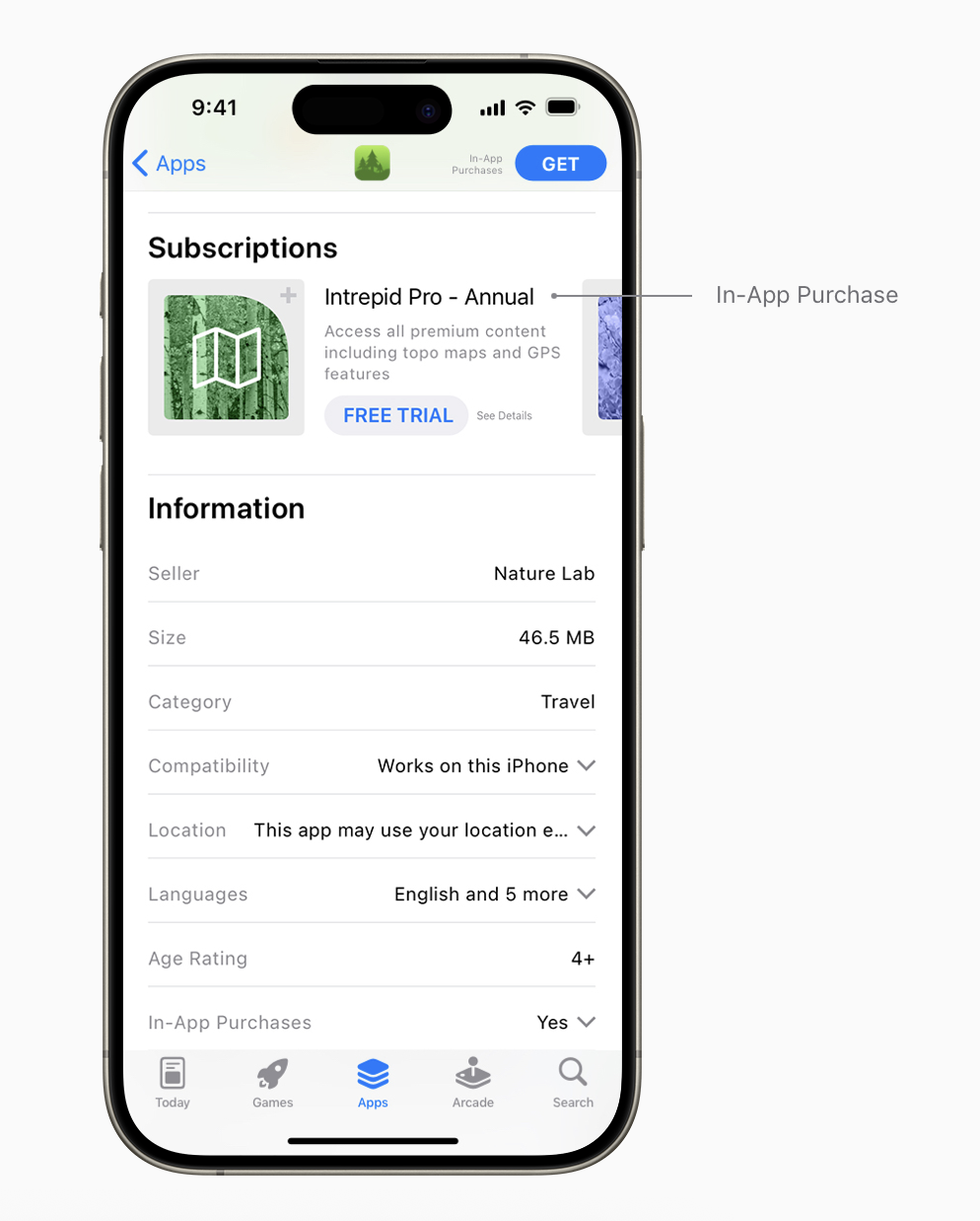
Users can discover in-app purchases directly from your product page. In-app purchases and subscriptions are displayed in separate sections, and you can feature up to 20 items. You also have control over the order in which these items appear, allowing you to highlight specific offerings. Each in-app purchase includes a display name, a promo image, and a short description. Names are limited to 30 characters and descriptions to 45 characters, so focus on being clear and concise when explaining the value and benefits of each item. In-app purchases may also appear in App Store search results and be featured on the Today, Games, and Apps tabs. When users tap an in-app purchase from these areas, they’re taken to your product page where they can explore your app further. If the app isn’t already installed, users will be prompted to download or purchase it before the transaction can be completed.
Localization
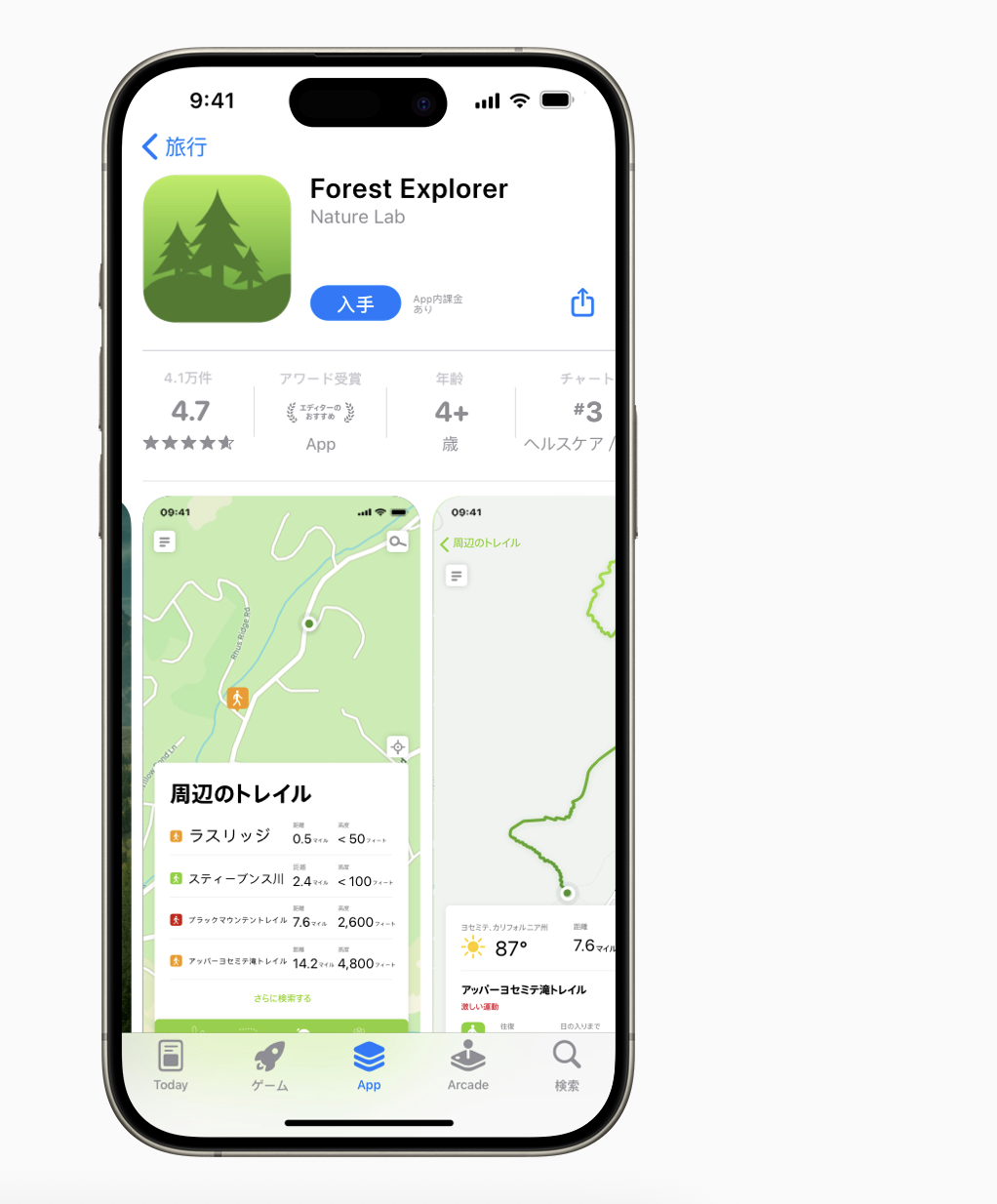
If your app is available in multiple languages, be sure to localize key elements of your product page for every market you support. This includes your app description, keywords, app previews, and screenshots. You can also translate your app’s name and adjust your keywords to better reflect the language, culture, and values of each region. Thoughtful localization helps your app feel more relevant and approachable, increasing the chances that it resonates with local audiences and performs well in each market.
Experiment with Your Page
Product Page Optimization
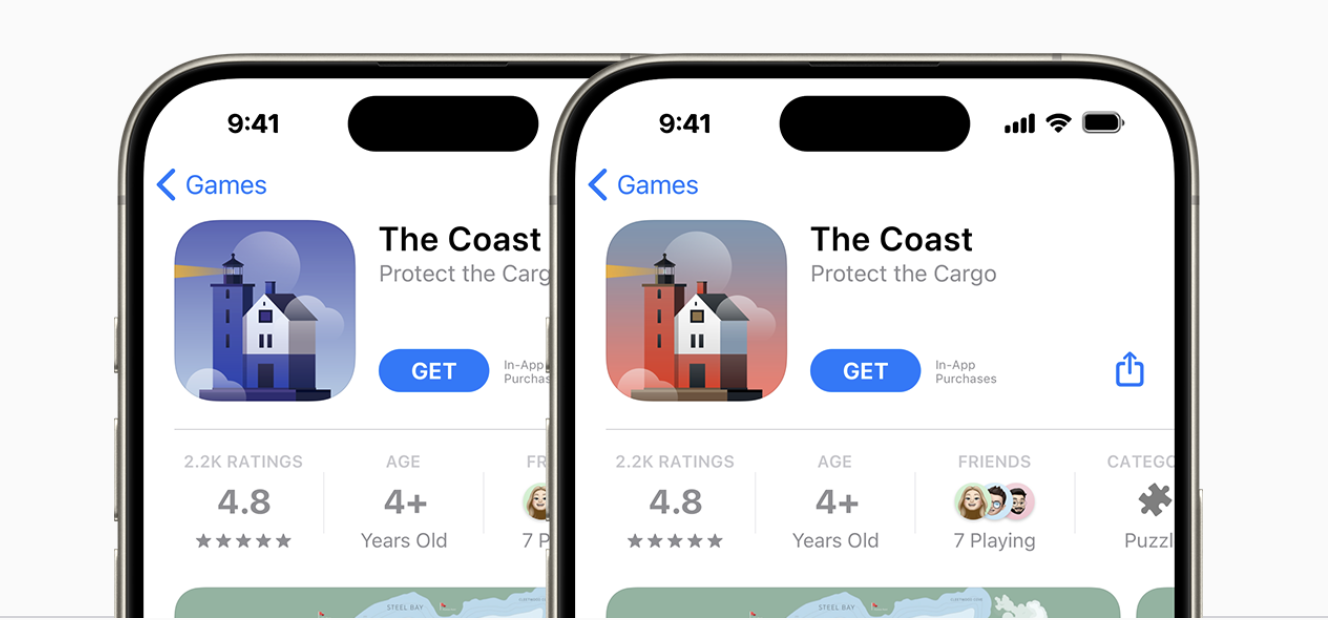
Use product page optimization to test different versions of your app’s product page. You can experiment with alternate app icons, screenshots, and app previews to see which combination performs best. Each variation is shown to a percentage of randomly selected, eligible App Store users, and performance results are available in App Analytics. Once you identify the top-performing version, you can set it as the default for all users on the App Store. Learn more
Custom Product Pages
Custom product pages let you create additional versions of your product page that highlight specific features or content. Each page has a unique URL that you can share through marketing campaigns or external channels. These pages can include different screenshots, app previews, and promotional text, and they’re fully localizable. This makes it easy to tailor your messaging around a particular sport, character, show, gameplay feature, or any other key aspect of your app. Learn more